Default Folder X allows you to quickly access your files and folders in every application.
Efficient work
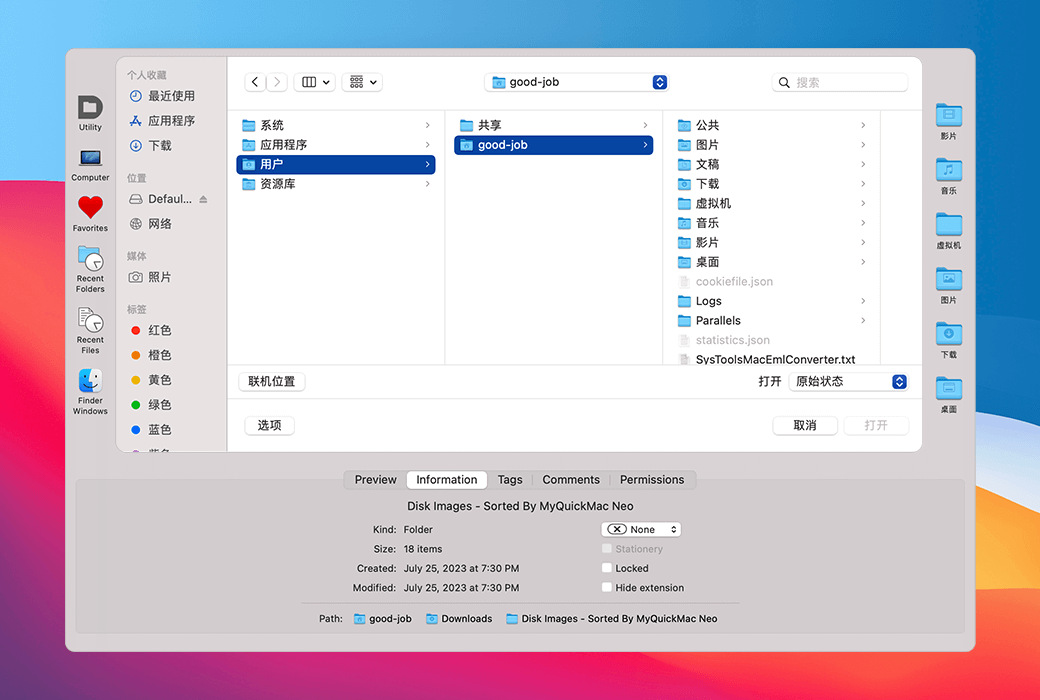
Default Folder X enhances the "Open" and "Save" dialog boxes in all applications, so you can
- pick up speed
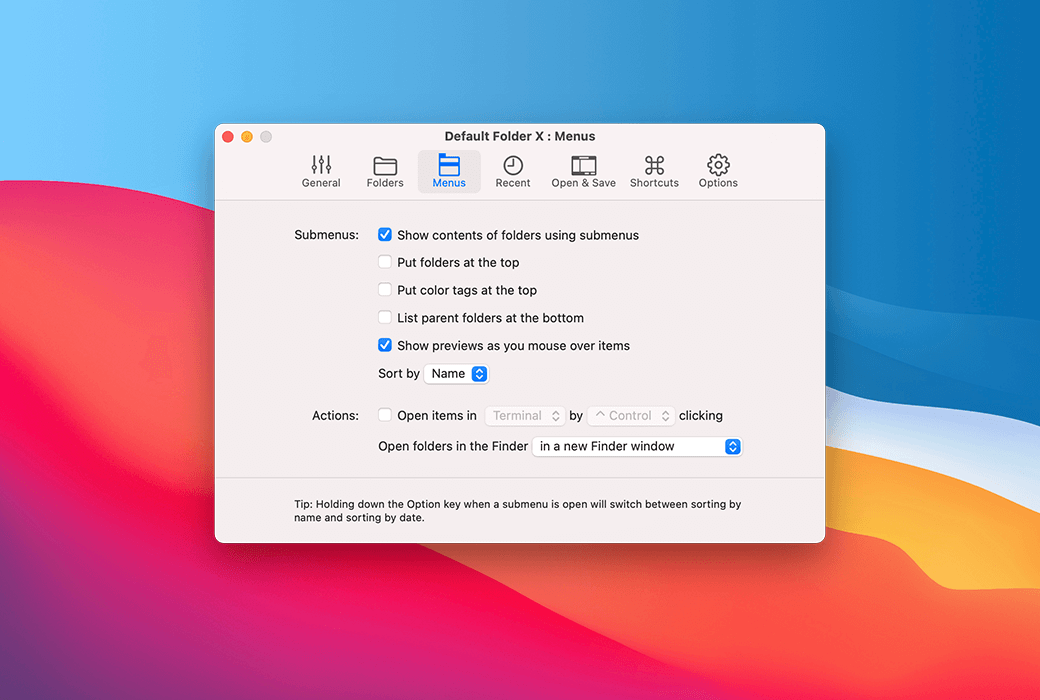
Quickly browse folders with hierarchical menus that expand when you hover over them.
- Instant search
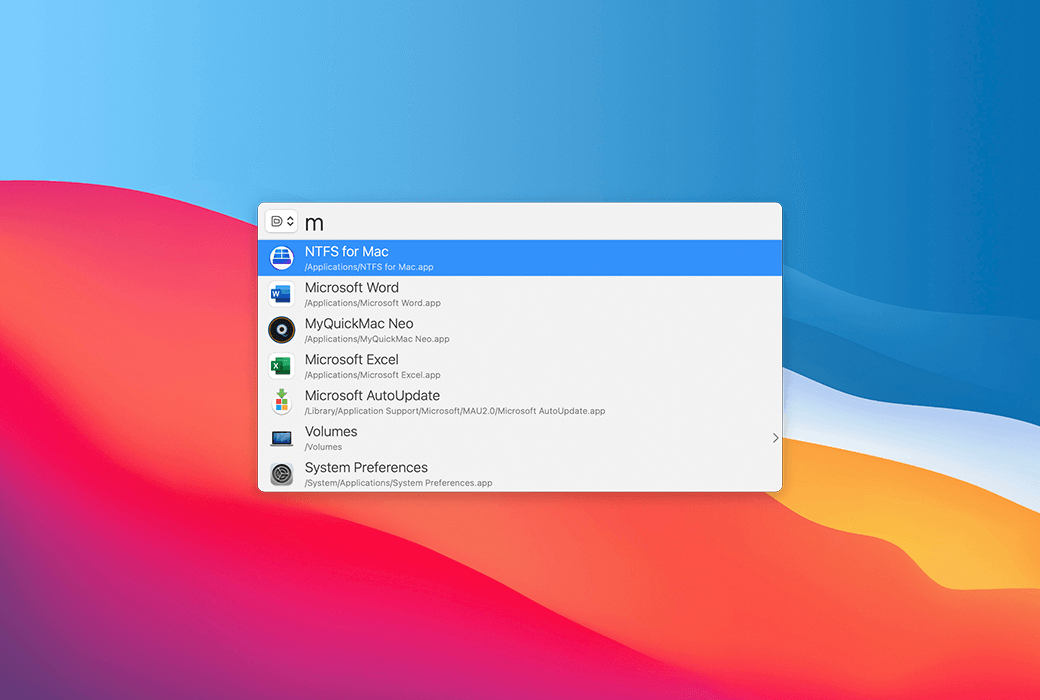
Enter a few characters of the file or folder name to open it in the file dialog box or "Finder".
- Just click
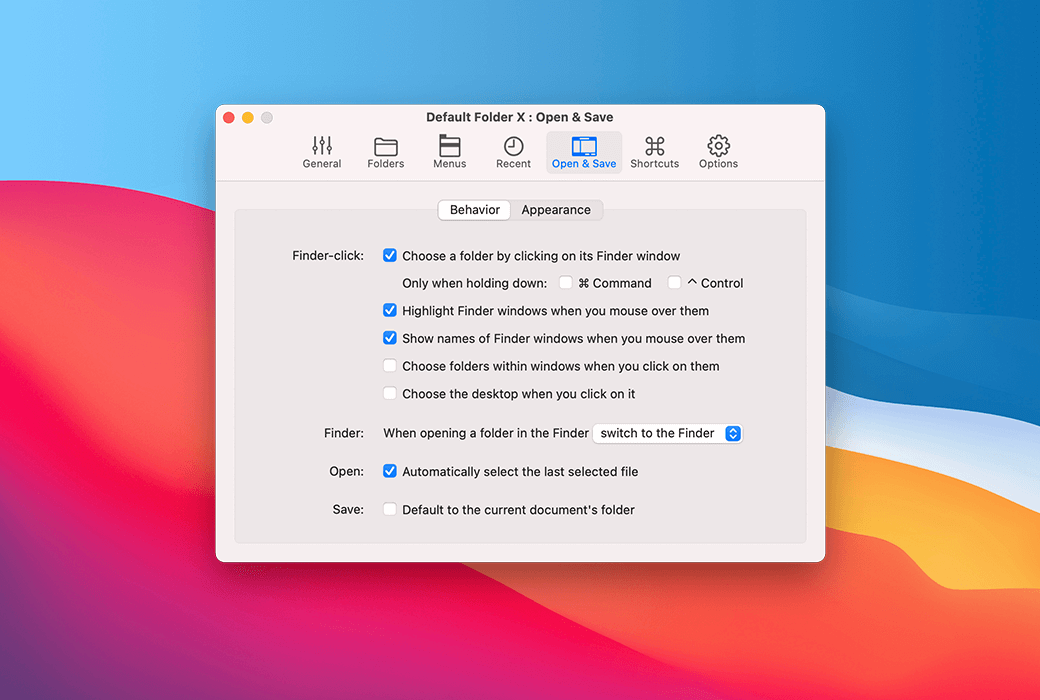
Do you need to save the file to the folder you opened in Finder? Just click on the Finder window!
Faster in 'Visiting'
The default folder X is also available in Finder, so you can
- Access all content
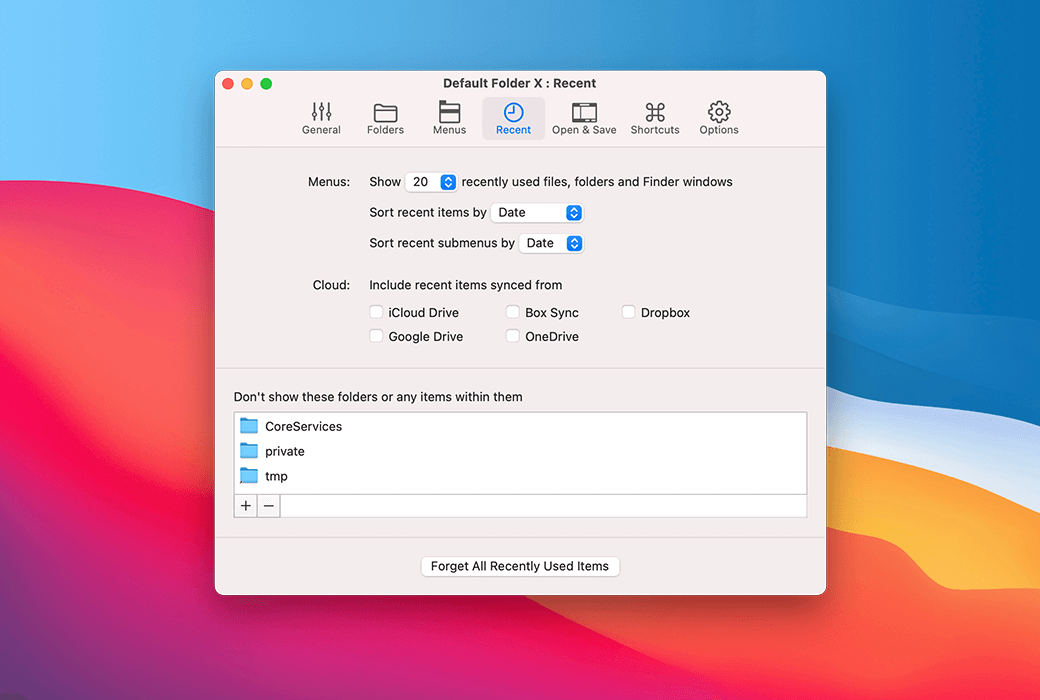
Quickly access all your recent and favorite items using customizable menus.
- Drag to drawer
Drag the project to the drawer below the "Finder" window for easy access in the future.
- Drag and drop to menu
Drag the projects onto the menu bar icon of DFX, and then move them directly to the folder through the menu.
Time saving function
- Navigation Assistant
Access your recent, favorite, and open folders from DFX's toolbar and menu bar icons. Layered pop-up menus allow you to quickly browse folders to access files.
- Fast search based on keyboard
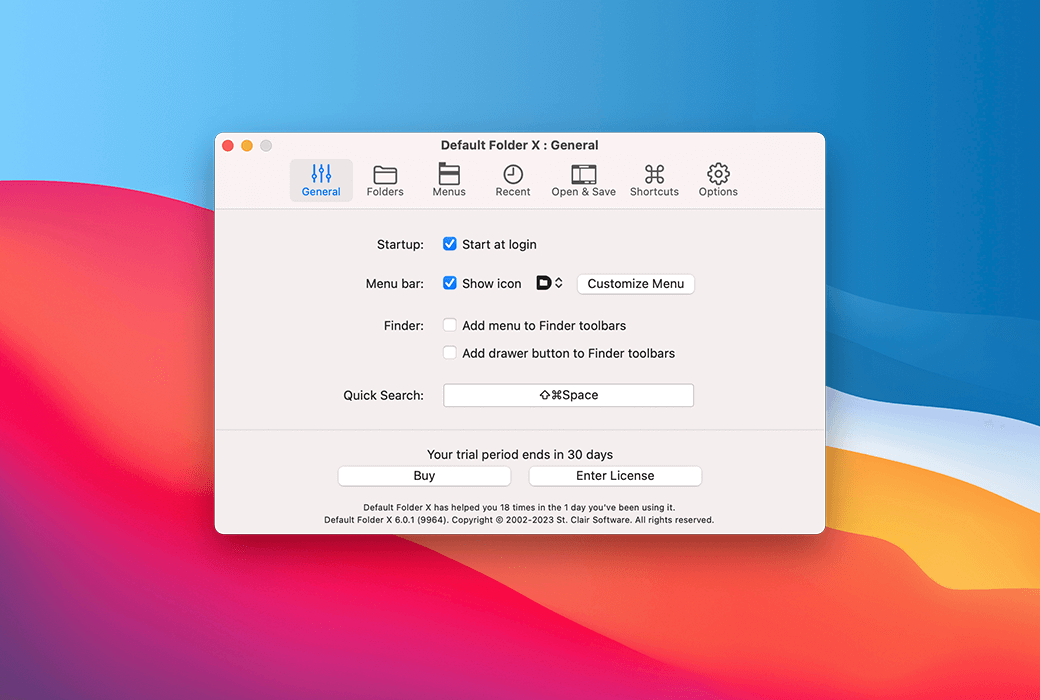
Press Command+Shift+Space to pop up the "Quick Search" window, and then type a few letters of the file, folder, or application name. DFX will immediately retrieve the most recently used projects.
- Finder Management
DFX allows you to open or save to any Finder window with just one click. It also allows you to obtain information about, copy, rename, and delete existing files, placing the powerful features of Finder in every "open" and "save" dialog box.
- Within reach
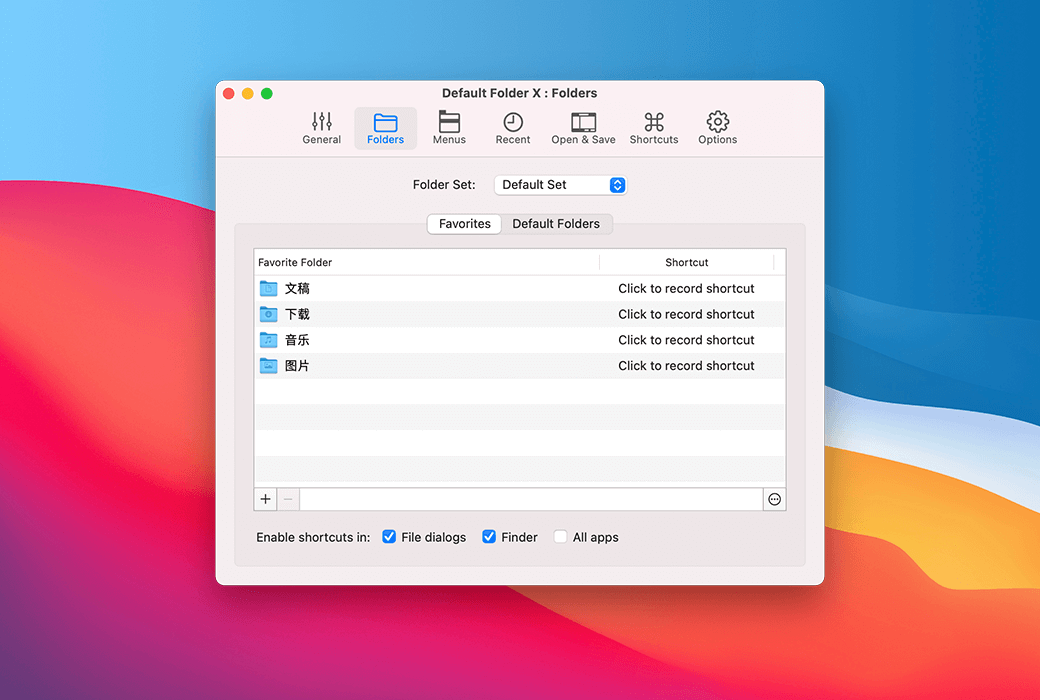
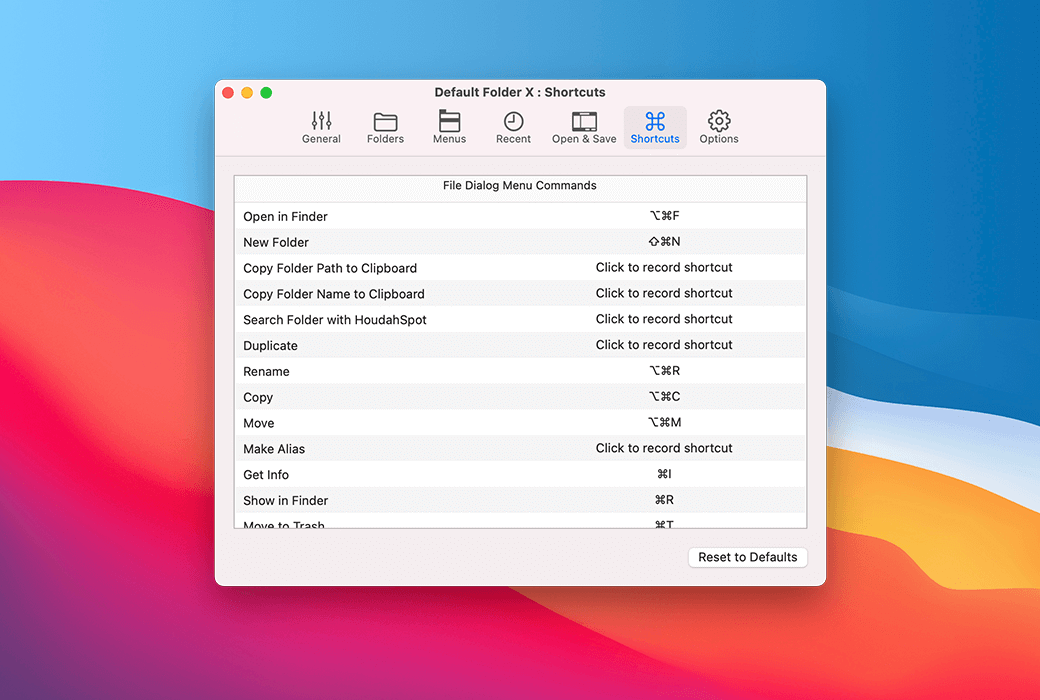
Use the keyboard shortcuts of your favorite folder to quickly get the location. Or jump to the recently used folder and open the Finder window by pressing the key. The shortcuts for DFX are fully configurable.
- Instant recall
To help you quickly return to the folders and files you recently used, DFX will remember them for you. It will even reselect the last file you opened. With DFX, you will never forget where you put your things.
- Real time time saving
If you frequently save content in the same folder, DFX can remember that folder for you. Alternatively, you can set it as the default folder for the application so that it is located in the correct folder from the beginning.